
When Windows 11 WiFi keeps disconnecting, even a simple task such as joining a video meeting, downloading a file, or watching a movie can become frustrating. Your laptop may connect for a few minutes and then lose internet access, or it may remain connected to the router while websites stop loading.
The cause is not always the same. Sometimes the issue comes from a weak wireless signal or router trouble. In other cases, Windows settings, a network adapter driver, or a recent system change may be responsible.
This guide explains 10 practical troubleshooting solutions, starting with simple checks before moving to more advanced network fixes. You will also learn how to tell whether the problem is likely coming from your Windows PC, your router, or your internet service provider.
Quick Answer
If Windows 11 WiFi keeps disconnecting, first check whether other devices can use the same network. Then restart your router, reconnect to Wi-Fi, run Windows network diagnostics, and check the correct Wi-Fi driver. Save Network reset and driver reinstallation for later if simpler fixes do not work.
Table of Contents
- Identify the Wi-Fi problem
- Interactive Wi-Fi Problem Finder
- 1. Check Wi-Fi and Airplane mode
- 2. Check other devices
- 3. Restart your router and modem
- 4. Forget and reconnect to Wi-Fi
- 5. Run Windows network diagnostics
- 6. Check signal strength and frequency bands
- 7. Check the Wi-Fi adapter driver
- 8. Check power-saving settings
- 9. Repair network settings with commands
- 10. Use Network reset as a last resort
- Which fix should you try first?
- Frequently Asked Questions
- Final Thoughts
Identify the Wi-Fi Problem First
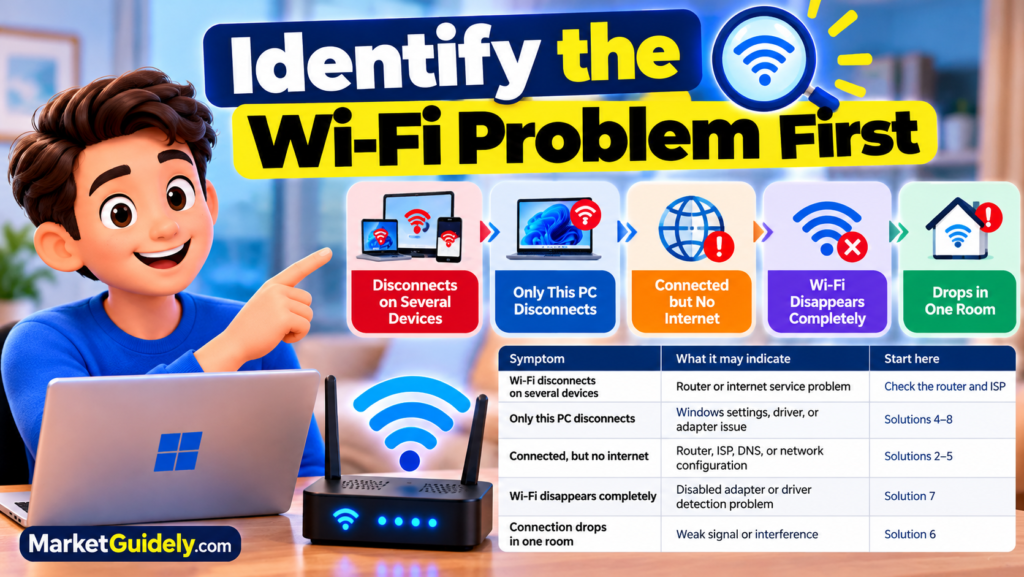
Before changing Windows settings, identify what happens when your connection fails. This can save you from reinstalling drivers when the real problem is your router or internet service.
| Symptom | Possible cause | Start here |
|---|---|---|
| Several devices lose internet | Router or internet service problem | Check the router and ISP |
| Only this PC disconnects | Windows settings, driver, or adapter issue | Solutions 4–8 |
| Connected but no internet | Router, ISP, DNS, or network configuration | Solutions 2–5 |
| Wi-Fi option disappears | Disabled adapter or driver detection problem | Solution 7 |
| Connection drops in one room | Weak signal or interference | Solution 6 |
Practical tip
When the problem happens again, check your phone on the same Wi-Fi network before changing anything on the laptop. If your phone also loses internet, investigate the router or internet provider first. If the phone works normally, focus on Windows and the laptop’s wireless adapter.
Interactive Wi-Fi Problem Finder
Choose the symptom that best describes your connection. The guide will suggest which troubleshooting steps to try first.
Find Your Wi-Fi Fix
What happens when your Wi-Fi stops working?
MarketGuidely.com
Note: This tool suggests troubleshooting steps based on your selection. It does not scan your computer or diagnose your network automatically.
1. Check Wi-Fi and Airplane Mode
Start with basic connection settings. Windows may have Wi-Fi switched off, or Airplane mode may be enabled.
- Press Windows + A to open Quick Settings.
- Check that Wi-Fi is switched on.
- Make sure Airplane mode is off.
- Select your usual network and check whether Windows shows Connected.
- If disconnected, select the network and reconnect.
Why this helps
It rules out simple settings problems before you change drivers or reset network configuration.
2. Check Whether Other Devices Disconnect
This test helps separate a PC problem from a router or internet service problem.
- Connect your phone to the same Wi-Fi network.
- Open a few websites or use a trusted online service.
- When the laptop disconnects, check whether the phone still works.
- If possible, test the laptop on another trusted Wi-Fi network.
If several devices lose internet at the same time, the router or internet service may be responsible. If only your Windows PC disconnects, investigate its adapter, saved network settings, and drivers.
A device can remain connected to the router even when the router has lost internet access. Check both the Wi-Fi connection and actual internet access before drawing a conclusion.
3. Restart Your Router and Modem
A router restart can resolve some temporary network problems, particularly when several devices are affected.
- Save your work and warn other users that the connection will briefly stop.
- Follow the router or modem manufacturer’s restart instructions.
- If the devices have separate power supplies, disconnect their power as instructed.
- Wait around 30 seconds before reconnecting power, unless the manufacturer specifies a different procedure.
- Allow the devices to finish starting up.
- Reconnect your PC and test the connection.
Important
Restarting is different from factory resetting. Do not press and hold the router’s Reset button unless you intend to restore factory settings and know how to configure the device again.
If several devices remain disconnected, check your provider’s service status or contact its support team.
4. Forget and Reconnect to Wi-Fi
If the issue affects only one laptop, reconnecting to the saved network is a reasonable next step.
- Open Settings → Network & internet → Wi-Fi.
- Open Manage known networks.
- Select your Wi-Fi network and choose Forget.
- Return to the available networks list.
- Select the network and enter the correct password.
Make sure you know the password before forgetting the network. You will need to enter it again.
Read Microsoft’s official Windows Wi-Fi guide for further instructions.
5. Run Windows Network Diagnostics
Windows 11 provides network troubleshooting through the Get Help app. The available diagnostic options can vary by Windows version.
- Open Start and search for Get Help.
- Open the app.
- Search for network or internet connection troubleshooting.
- Choose the relevant diagnostic option if available.
- Follow the prompts and test your connection again.
If the diagnostic tool does not resolve the issue, continue to the next relevant solution rather than repeating the same check.
Official reference: Microsoft’s Windows troubleshooting guide.
6. Check Wi-Fi Signal and Frequency Bands
A connection that works near the router but drops in another room may be suffering from weak signal strength or interference. Walls, floors, appliances, and router placement can affect wireless performance.
- Move closer to the router: Test the laptop in the same room.
- Try another supported band: If your router offers 2.4 GHz and 5 GHz networks, test the other band if your PC supports it.
- Improve router placement: Keep it in an open, central position where practical.
- Reduce interference: Avoid placing the router behind large objects or directly beside sources of interference.
The 2.4 GHz band generally offers better reach through obstacles, while 5 GHz can provide faster connections over shorter distances in suitable conditions. Actual performance depends on your router, environment, and adapter.
7. Check the Wi-Fi Adapter Driver
A network adapter driver allows Windows to communicate with the wireless hardware. A damaged, outdated, or incompatible driver can contribute to unstable connections, particularly after a Windows or driver update.
How to check for a driver update
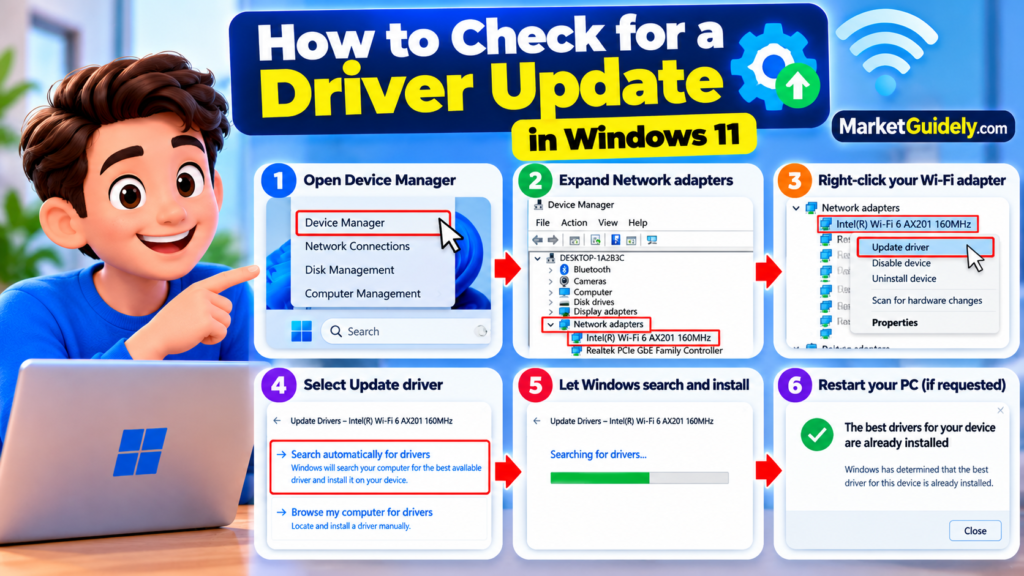
- Right-click Start and open Device Manager.
- Expand Network adapters.
- Find the wireless or Wi-Fi adapter.
- Right-click it and choose Update driver.
- Select the option to search automatically for drivers.
- Follow any instructions and restart the PC if requested.
If Windows reports that the best driver is already installed but the problem continues, check your computer manufacturer’s official support website for a compatible driver. Search using the exact PC model and Windows version.
Before reinstalling a driver
If possible, download the correct network driver first and save it locally or on a USB drive. This is especially important if you have no alternative way to access the internet.
If the connection began failing immediately after a driver update, open the adapter’s Properties and check the Driver tab. If Roll Back Driver is available, consider it when the recent update is a plausible cause.
8. Check Wi-Fi Power-Saving Settings
Some Windows devices provide network adapter power-management options. Depending on the hardware and driver, these settings may affect how the adapter behaves while the computer conserves power.
- Open Device Manager.
- Expand Network adapters.
- Right-click the Wi-Fi adapter and select Properties.
- Look for a Power Management tab.
- If available, test clearing Allow the computer to turn off this device to save power.
- Select OK and monitor the connection.
This tab or checkbox may not be available on every adapter. Do not force the setting through the registry or unrelated third-party utilities. Changing power-saving behaviour can affect battery life, so restore the original setting if it makes no difference.
9. Repair Network Settings with Commands
If basic troubleshooting has failed, Windows network commands can reset selected network components and refresh IP or DNS information. These steps are more advanced, so follow the sequence carefully.
Open Command Prompt as administrator
- Search for Command Prompt in Start.
- Select Run as administrator.
- Approve the permission prompt if it appears.
- Run each command separately and wait for it to finish.
netsh winsock reset
netsh int ip reset
ipconfig /release
ipconfig /renew
ipconfig /flushdns
Restart the PC if requested, then test the connection.
Important precaution
If your PC uses a workplace VPN, static IP address, or special network settings, consult your administrator before running these commands. They may change or refresh network configuration and are not guaranteed to fix every disconnection.
Reference: Microsoft’s Wi-Fi troubleshooting guide.
10. Use Network Reset as a Last Resort
Network reset removes installed network adapters and resets their settings to defaults. It may help when other troubleshooting steps have failed, but you might need to configure network-related software again.
Before you start
- Save your work and close open applications.
- Make sure you can obtain the correct network driver if needed.
- Note any special VPN, static IP, or virtual-network configuration.
How to reset the network
- Open Settings → Network & internet.
- Select Advanced network settings.
- Choose Network reset.
- Select Reset now and confirm.
- Allow Windows to restart if required.
- Reconnect to Wi-Fi and test it.
Network reset should not be the first step. It can remove network configuration and may require you to reinstall or reconfigure VPN software, virtual switches, or other networking tools.
If the problem remains after a network reset, or the wireless adapter is not detected at all, consult your PC manufacturer’s support service. A hardware issue may need further investigation.
Which Fix Should You Try First?
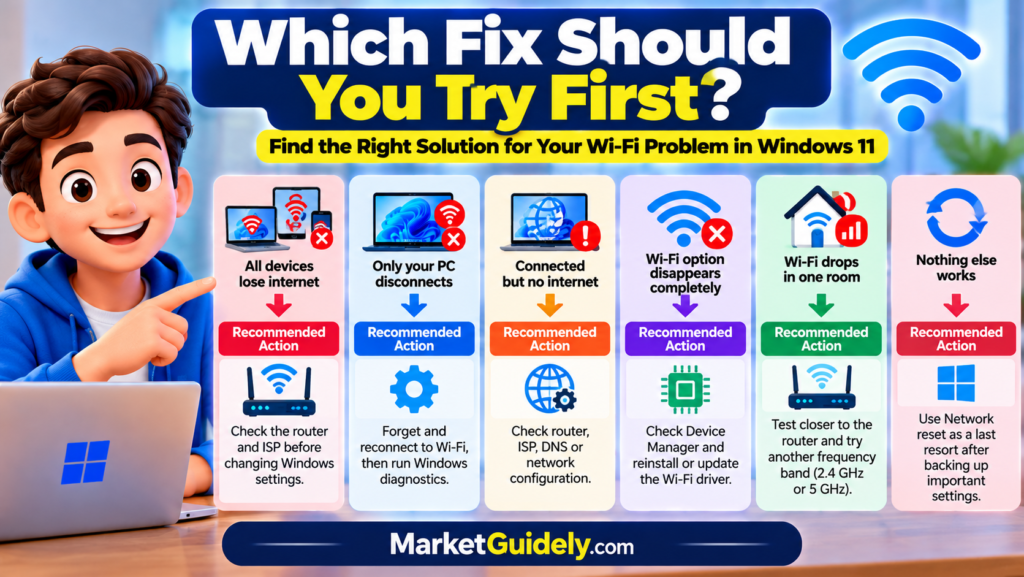
| Your situation | Recommended action |
|---|---|
| All devices lose internet | Check the router and ISP before changing Windows settings. |
| Only your PC disconnects | Forget and reconnect to Wi-Fi, then run diagnostics. |
| Wi-Fi fails in one room | Test closer to the router and compare supported bands. |
| Problem began after a driver update | Check the driver and consider rolling back the recent update if available. |
| Wi-Fi adapter is missing | Check Device Manager and the manufacturer’s driver page. |
| Nothing else works | Consider Network reset after noting important network settings. |
Frequently Asked Questions
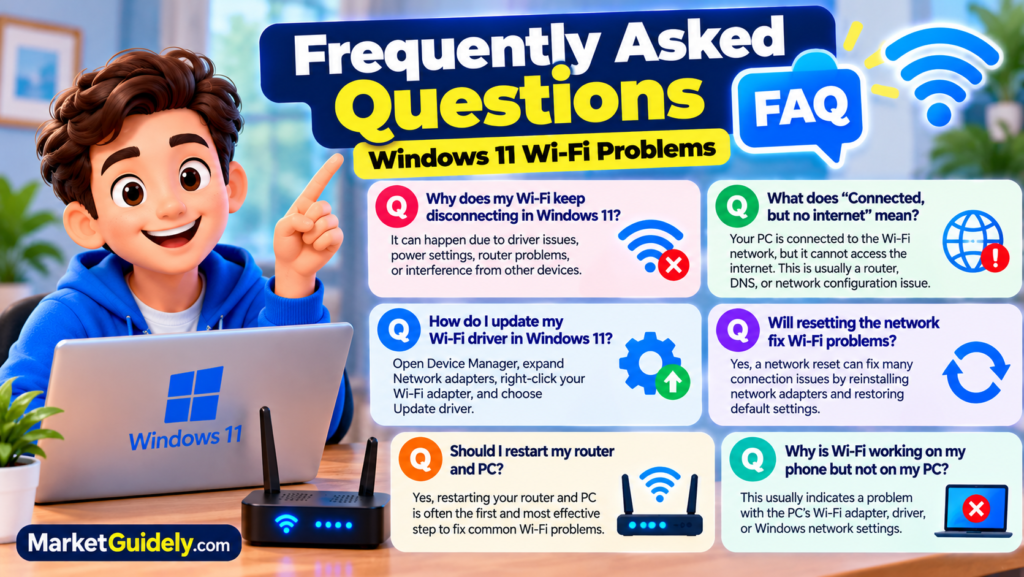
Why does Wi-Fi keep disconnecting in Windows 11?
Possible causes include weak wireless signal, router instability, a network adapter driver problem, power-management settings, or a Windows network configuration issue. Check whether other devices are affected to help narrow down the cause.
Why does my laptop say connected but no internet?
Your laptop may still be connected to the router even though the router has lost its internet connection. Test another device on the same network. If multiple devices have the same issue, check the router and contact your internet provider if necessary.
Will updating the Wi-Fi driver fix disconnections?
It can help when the problem is caused by a driver issue or incompatibility, but it is not a universal fix. Use Windows Update or your computer manufacturer’s official support website.
Should I reset my router or Windows network settings first?
If multiple devices are affected, check the router first. If only one Windows PC disconnects, start with the saved network, diagnostics, and adapter driver. Use Windows Network reset later because it removes network adapters and resets their settings.
Why does Wi-Fi work near the router but disconnect in another room?
Walls, distance, interference, and router placement can reduce signal quality. Test the laptop closer to the router and compare another supported Wi-Fi band if available.
Can I fix Wi-Fi disconnections without reinstalling Windows?
Many Wi-Fi problems can be investigated through connection checks, network diagnostics, driver troubleshooting, and router checks without reinstalling Windows. The right fix depends on the underlying cause.
My Final Thoughts
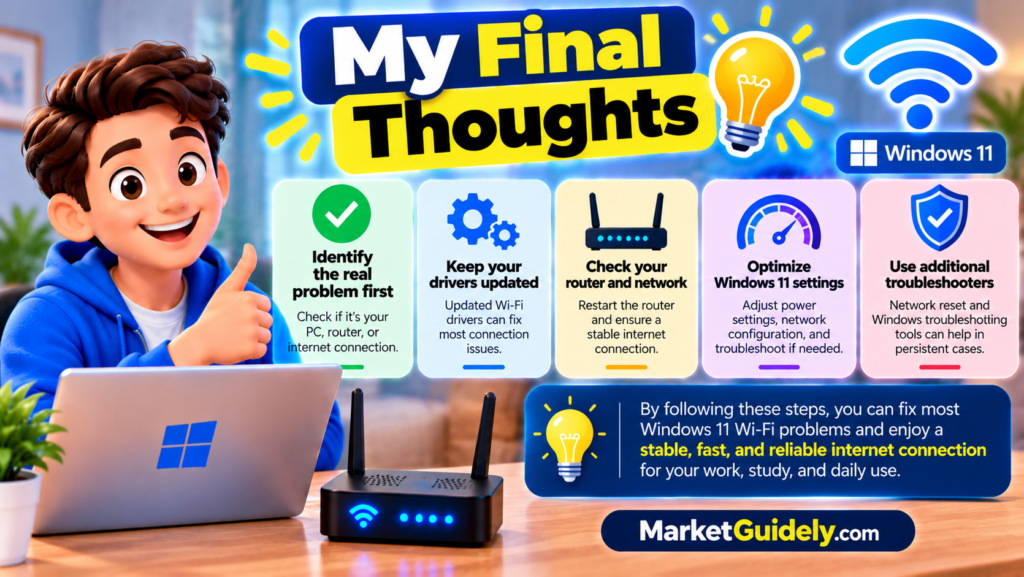
When Windows 11 WiFi keeps disconnecting, identify where the problem begins before changing advanced settings. A router issue, weak signal, and laptop driver problem can produce similar symptoms, but they need different solutions.
Start by testing another device on the same network. If several devices lose internet, investigate the router or your provider. If only your laptop disconnects, try reconnecting to the saved network, running network diagnostics, and checking the Wi-Fi adapter driver.
My recommendation is to make one change at a time and test the connection after each step. This makes it easier to understand which fix helped and reduces the risk of introducing new problems. Keep Network reset as a later option, particularly if your PC uses a VPN or custom network configuration.
Explore More Practical Tech Guides
Visit MarketGuidely.com for practical technology guides and troubleshooting advice.
For another Windows issue, read our guide to fixing Bluetooth problems in Windows 11.
Author

marketguidely@gmail.com
Related Posts

AI Smart Home Devices in 2026: What to Buy & Avoid
- 0
- 2,455 words
Smart home technology is moving beyond simple voice commands and scheduled routines. Newer devices increasingly use artificial intelligence to interpret requests, connect...
Why Is My Windows 11 Laptop So Slow? 10 Fixes
- 0
- 2,131 words
A slow laptop can turn even simple tasks into a frustrating experience. Windows may take too long to start, apps might freeze...
How to Fix Windows 11 Bluetooth Not Working: 10 Fixes
- 1
- 2,459 words
Windows 11 Bluetooth not working can prevent you from connecting wireless headphones, keyboards, mice, and other accessories to your PC. The problem...

The Best Wireless Earbuds Under ₹2000
- 0
- 1,839 word
Wireless Earbuds Under ₹2000 Spending ₹2000 on wireless earbuds in India used to mean accepting tinny sound, flimsy plastic, and a battery...
Read out all
Things to Check Before Buying a Laptop: 10 Smart Tips for a Better Buy in 2026
- 0
- 3,077 words
Buying a used laptop can feel like a shortcut until you realize the “deal” comes with a dying battery, a warped hinge,...
Read out all
Things to Check Before Buying a Gaming PC: 10 Smart Tips for a Better Buy in 2026
- 0
- 3,019 words
Buying a gaming PC can feel simple until you start comparing specs and realize half the numbers only matter in the right...
Read out all
1 comment