
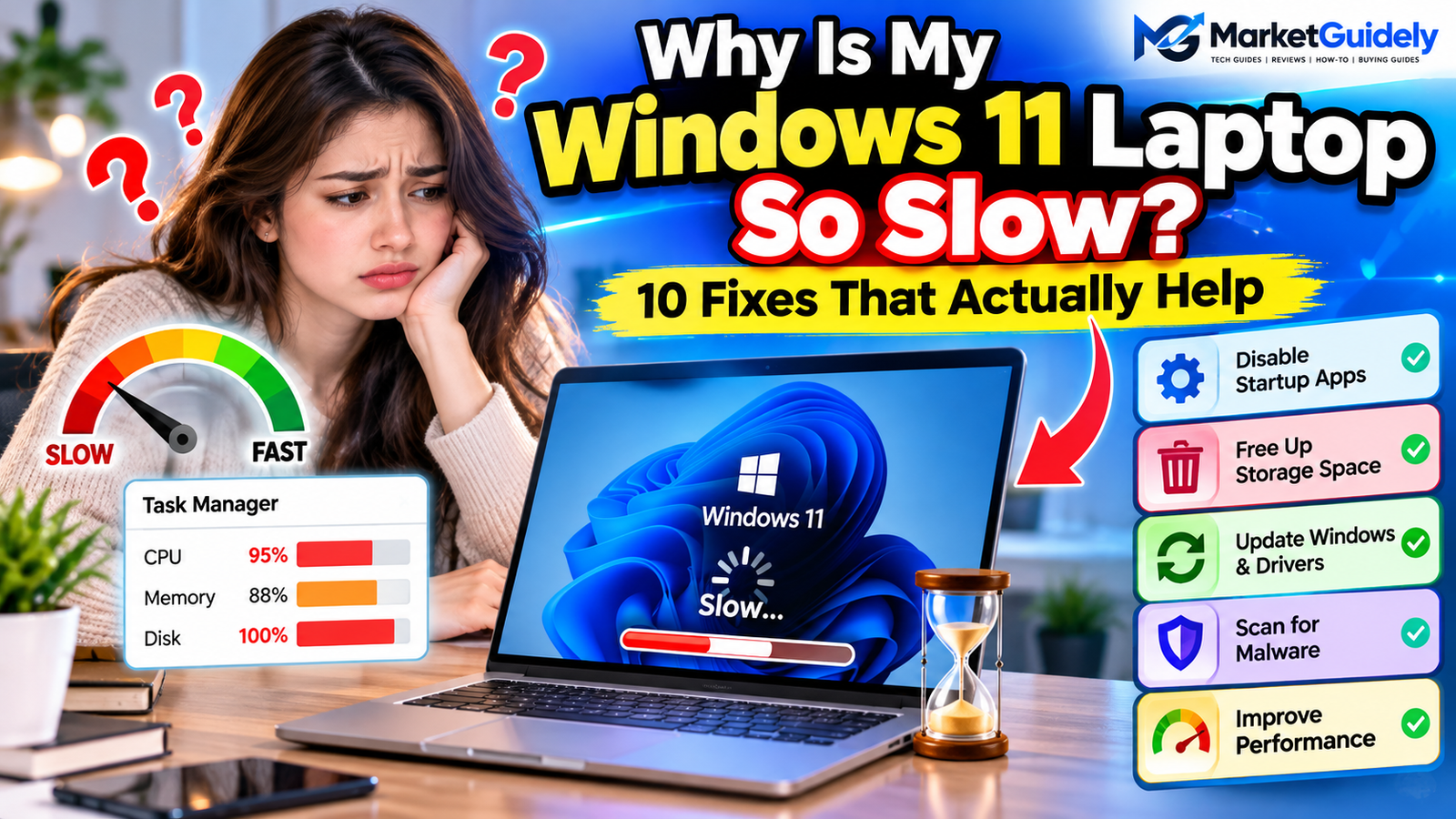
Quick Answer: How to Make a Slow Windows 11 Laptop Faster
- Restart your laptop and close unused apps.
- Check CPU, memory, and disk usage in Task Manager.
- Disable unnecessary startup applications.
- Free up storage using Windows Storage settings.
- Install relevant Windows and manufacturer driver updates.
- Run a Windows Security scan if you suspect malware.
If your laptop is still slow, use the following troubleshooting steps to identify the likely cause before considering a hardware upgrade.
Why Is My Windows 11 Laptop Running Slowly?
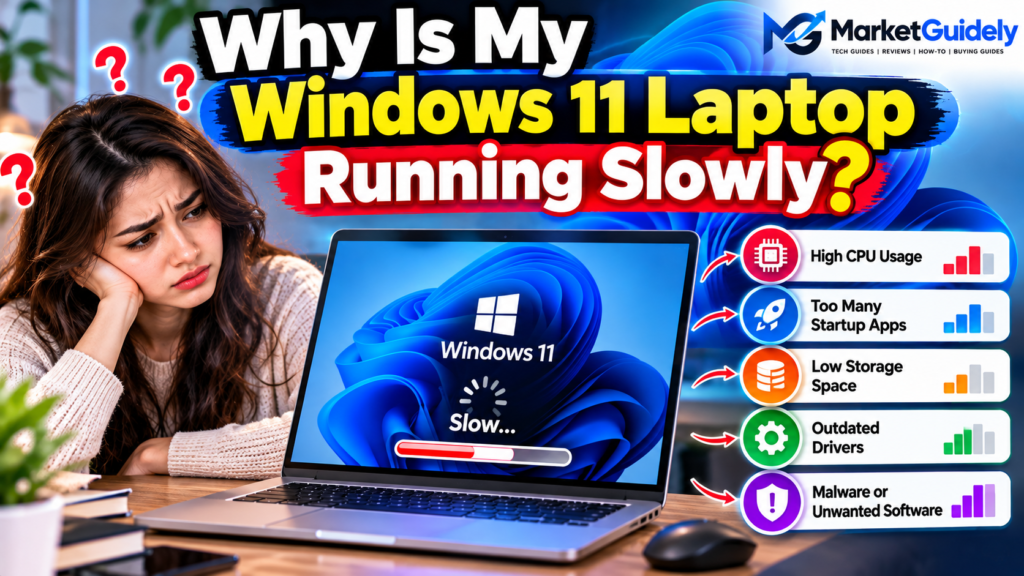
There is no single explanation for every slow computer. A laptop that takes several minutes to start may have too many startup applications, while one that becomes slow during video editing may be running short of memory or processing power.
| What You Notice | Possible Cause | What to Check |
|---|---|---|
| Slow startup | Too many startup apps | Task Manager |
| Apps freeze or reload | High memory usage | Memory usage in Task Manager |
| Files open slowly | Storage or drive problems | Free space and drive health |
| Laptop gets hot and slows down | Heat or heavy workloads | Airflow, temperature and CPU usage |
| Slowdown after an update | Background work or driver issues | Windows Update history |
| Unexpected pop-ups or unusual activity | Potential unwanted software | Windows Security |
These are possible causes, not definitive diagnoses. Checking actual resource usage is more useful than installing random optimization tools.
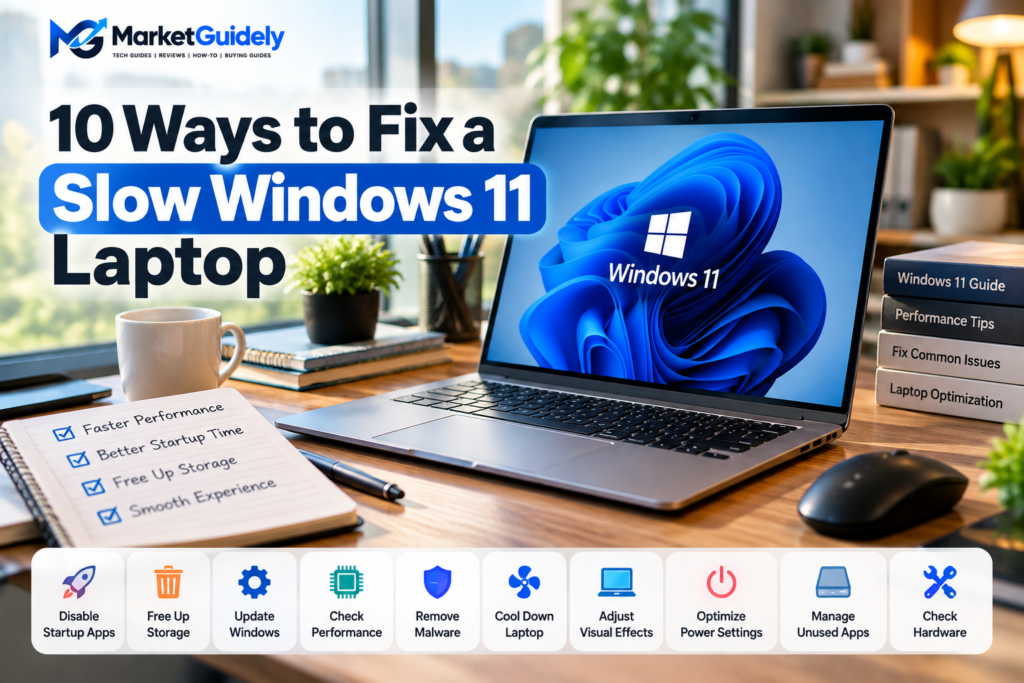
10 Ways to Fix a Slow Windows 11 Laptop
1. Restart Your Laptop Properly
If your laptop has been running for days, temporary software issues or accumulated background activity may contribute to poor performance. A restart closes running applications and starts a fresh Windows session.
- Save your open documents and work.
- Open the Start menu.
- Select the Power icon.
- Choose Restart.
- After signing in, open only the applications you need and check whether performance improves.
A restart is a useful first test, but it will not solve persistent hardware faults, insufficient memory, or every software problem.
2. Find Resource-Hungry Apps in Task Manager
Task Manager can help you identify whether your laptop is struggling with CPU, memory, or disk activity. This is one of the most useful checks when Windows 11 becomes slow without an obvious reason.
- Press Ctrl + Shift + Esc.
- Open the Processes tab.
- Review the CPU, Memory, and Disk columns.
- Click a column heading to sort applications by resource usage.
- Identify applications using unusually high resources compared with your normal workload.
If a browser, video editor, or other application is using substantial resources, close it normally if possible. If an application has stopped responding, you can select it and choose End task, but save your work first whenever possible.
Important: Do not randomly end Windows system processes. Some high resource usage is normal during updates, scans, file transfers, or demanding tasks. Check whether usage remains unusually high after the task finishes.
3. Disable Unnecessary Startup Apps
Some applications automatically start when you sign in to Windows. Too many of them can increase startup time and keep using memory and CPU resources in the background.
- Open Task Manager using Ctrl + Shift + Esc.
- Select Startup apps from the sidebar.
- Review the listed applications and their startup impact.
- Right-click an app you do not need immediately after signing in.
- Select Disable.
Consider disabling unnecessary game launchers, optional messaging apps, and other nonessential programs. Keep security software and applications that you genuinely need to launch automatically enabled.
Disabling an app from startup does not normally uninstall it. You can still open the application manually whenever you need it.
4. Free Up Storage Space
A nearly full system drive can make maintenance, updates, and everyday file operations more difficult. Removing unnecessary files can help restore available space, although it will not fix every type of slowdown.
- Open Settings by pressing Windows + I.
- Select System, then Storage.
- Review the categories using the most space.
- Open Temporary files and review the available cleanup options.
- Select only the files you are comfortable deleting and confirm removal.
You can also enable Storage Sense to help manage temporary files automatically. Review your Downloads folder before deleting anything because it may contain documents, installers, or other files you want to keep.
Do not assume that every item listed for cleanup is disposable. Read the description of each category before removing it.
5. Uninstall Applications You No Longer Use
Unused applications can occupy storage and sometimes install background services or startup components. Removing software you no longer need can simplify your system and free disk space.
- Open Settings.
- Go to Apps, then Installed apps.
- Find an application you recognize and no longer use.
- Select its menu and choose Uninstall.
- Follow the instructions to complete the removal.
Do not remove unfamiliar drivers, Microsoft components, or manufacturer utilities simply because their names are unfamiliar. Research a program before uninstalling it if you are unsure what it does.
6. Install Windows and Relevant Driver Updates
Updates can include bug fixes, compatibility improvements, and security fixes. If performance problems began after an update, however, the update history may also help you investigate a possible driver or compatibility issue.
- Open Settings and select Windows Update.
- Choose Check for updates.
- Install appropriate available updates and restart if requested.
- For hardware-specific issues, check your laptop manufacturer’s official support website for the correct model and driver.
Optional driver updates are not always necessary. Avoid third-party driver download sites and do not install a driver intended for a different laptop model.
If the slowdown started immediately after a particular update, note the update name and date before attempting more advanced troubleshooting.
7. Check for Malware and Unwanted Software
Some malicious or unwanted programs can consume system resources, display intrusive advertisements, or run processes without your knowledge. A security scan is sensible if the slowdown is accompanied by unexplained pop-ups, suspicious applications, or other unusual activity.
- Open Windows Security from the Start menu.
- Select Virus & threat protection.
- Choose Quick scan and allow it to finish.
- Follow Windows Security’s recommendations if a threat is detected.
If the problem continues and you have reason to suspect malware, consider a more thorough scan. Do not download unknown “PC cleaner” tools or disable security protection in an attempt to speed up your laptop.
8. Reduce Unnecessary Visual Effects
Animations and visual effects can use additional system resources. Reducing them may make some older or resource-constrained computers feel more responsive, although the improvement depends on the hardware.
- Open Start and search for Adjust the appearance and performance of Windows.
- Open the matching system setting.
- Under Visual Effects, review the available options.
- If you prefer responsiveness over animations, choose Adjust for best performance.
- Select Apply, then test your normal applications.
This setting can make Windows look less polished by reducing animations and other visual details. If you do not like the result, return to the same settings and restore the effects you prefer.
9. Check Power Settings and Overheating
Windows power settings can affect performance, especially on laptops running on battery. Heat can also cause a laptop to reduce processor speed to protect its components.
To review power mode:
- Open Settings.
- Go to System, then Power & battery.
- Find the Power mode setting if it is available.
- Choose a suitable mode for your workload.
Best performance may increase power consumption, fan noise, and heat. For ordinary browsing and document work, a balanced setting is often more practical.
To check for overheating:
- Use your laptop on a firm, flat surface.
- Keep air vents clear of blankets, cushions, and other obstructions.
- Listen for unusually loud or persistent fan activity.
- If the laptop becomes excessively hot or shuts down unexpectedly, stop demanding tasks and seek qualified servicing if the problem continues.
Do not open the laptop or attempt internal cleaning unless you understand the safety and warranty implications.
10. Check Whether Your Hardware Is the Limitation
Sometimes Windows is not the main problem. An older processor, limited RAM, a slow or failing storage drive, or hardware that no longer meets your workload’s needs can limit performance even after software cleanup.
Start by checking your specifications:
- Open Settings.
- Select System, then About.
- Review the processor and installed RAM details.
- Open Task Manager and select Performance.
- Check memory, disk, and CPU activity while performing the tasks that feel slow.
If memory is consistently close to full while you work, reducing open applications or browser tabs may help. If your laptop uses a traditional hard drive, an SSD upgrade may improve startup and application-loading times, provided the device supports it.
Before purchasing hardware, confirm compatibility with your laptop model. If the disk shows errors, makes unusual noises, or the computer freezes repeatedly, back up important files before attempting repairs or upgrades.
Which Fix Should You Try First?
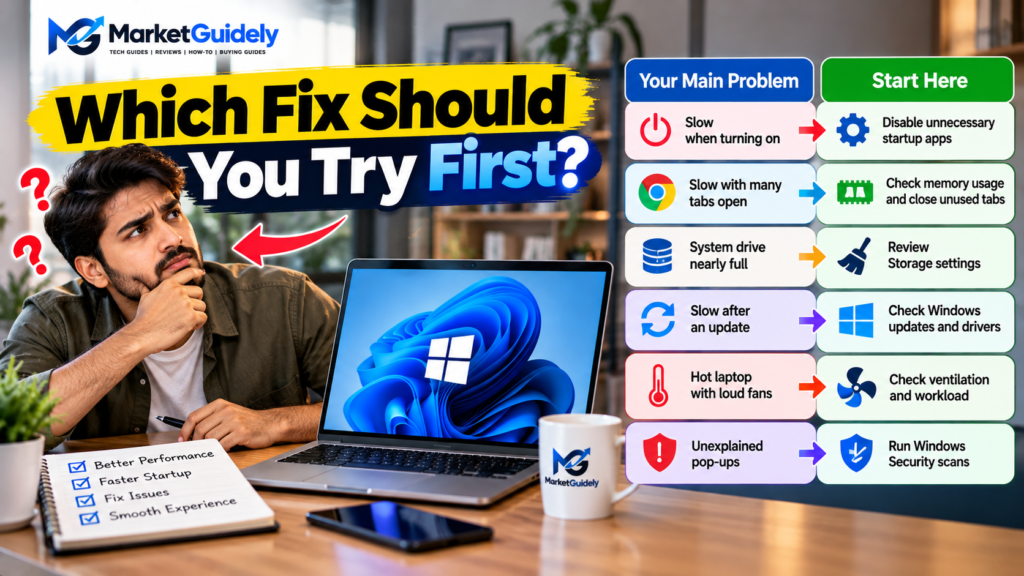
| Your Main Problem | Start Here |
|---|---|
| Slow when turning on | Disable unnecessary startup apps |
| Slow with many tabs open | Check memory usage and close unused tabs |
| System drive nearly full | Review Storage settings |
| Slow after an update | Review Windows Update history and drivers |
| Hot laptop with loud fans | Check ventilation and workload |
| Unexplained pop-ups | Run Windows Security scans |
Mistakes to Avoid When Speeding Up Windows 11
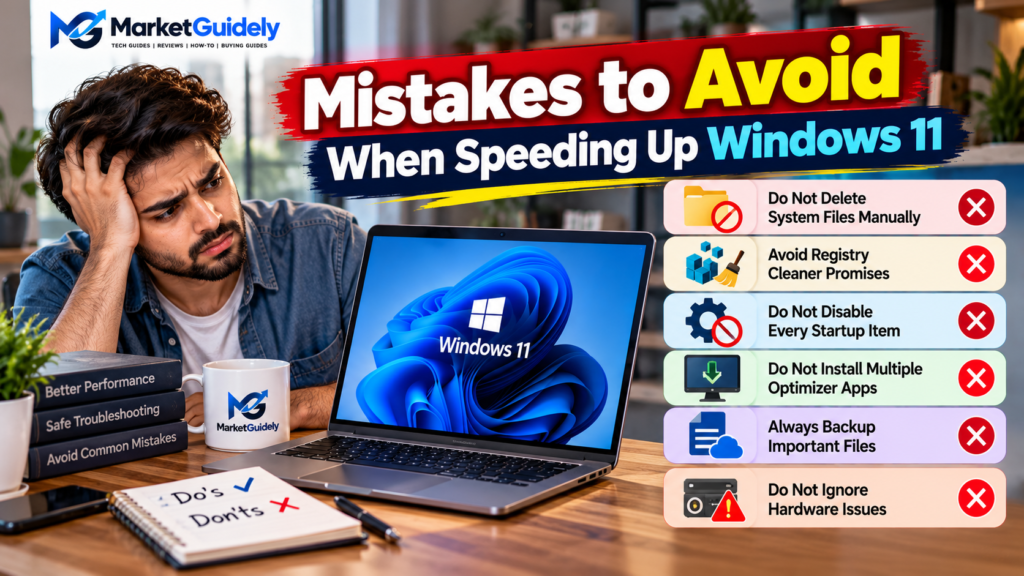
- Do not delete system files manually. Removing files from Windows folders can damage the operating system.
- Avoid registry-cleaning promises. Registry cleaners are not a reliable universal solution for slow computers.
- Do not disable every startup item. Some applications and security tools need to run automatically.
- Do not install several optimizer apps. They may add more background processes instead of solving the original problem.
- Back up important files. Do this before major repairs, drive replacement, or reinstalling Windows.
- Do not expect software tweaks to fix faulty hardware. Persistent errors, failing storage, or overheating may require professional diagnosis.
Frequently Asked Questions
Why is my Windows 11 laptop suddenly so slow?
A sudden slowdown can be caused by a background update, a resource-heavy application, low storage space, a driver problem, overheating, or unwanted software. Check Task Manager first to see which resources are under pressure.
How can I make Windows 11 faster without installing software?
Restart the laptop, disable unnecessary startup apps, free up storage with Windows settings, close unused applications, install relevant updates, and run Windows Security if you suspect malware. These built-in tools are a good starting point.
Does disabling startup apps delete them?
No. Disabling a startup app generally prevents it from launching automatically when you sign in. You can still open the application manually, and you can re-enable startup behavior later.
Will deleting temporary files make my laptop faster?
It can help when storage space is limited, but it will not necessarily improve performance if the real cause is high CPU usage, insufficient memory, overheating, or a hardware fault.
Can adding more RAM make a slow laptop faster?
It may help if your laptop regularly runs out of available memory during normal tasks. First check memory usage and confirm whether your laptop supports a RAM upgrade. Some models have non-upgradable memory.
Should I reset Windows 11 if my laptop is slow?
A Windows reset may help with certain persistent software problems, but it should not be the first step. Diagnose the cause, back up your important files, and understand the reset options before proceeding.
When should I get my laptop checked by a technician?
Consider professional help if the laptop repeatedly crashes, overheats, shuts down unexpectedly, reports storage errors, or remains extremely slow after basic troubleshooting. Back up important data first if you can do so safely.
Final Thoughts
A slow Windows 11 laptop does not automatically mean you need a new computer. Startup apps, background processes, storage limitations, updates, and thermal issues are all worth checking before spending money on an upgrade.
Begin with Task Manager and startup apps, then work through storage cleanup, updates, security checks, and power settings. Change one thing at a time and compare performance after each step. If the laptop remains slow, use its specifications and resource readings to decide whether a hardware upgrade or professional diagnosis makes sense.
For more troubleshooting help, read our guides on fixing Wi-Fi that keeps disconnecting in Windows 11 and fixing Bluetooth problems in Windows 11.
Sources and Further Reading
- Microsoft Support: Tips to improve PC performance in Windows
- Microsoft: Take control of Windows startup
MarketGuidely provides practical technology guides and troubleshooting advice to help readers make informed decisions about their devices.
Author

marketguidely@gmail.com
Related Posts

AI Smart Home Devices in 2026: What to Buy & Avoid
- 0
- 2,455 words
Smart home technology is moving beyond simple voice commands and scheduled routines. Newer devices increasingly use artificial intelligence to interpret requests, connect...
How to Fix Wi-Fi Keeps Disconnecting in Windows 11
- 1
- 2,246 words
When Windows 11 WiFi keeps disconnecting, even a simple task such as joining a video meeting, downloading a file, or watching a...
How to Fix Windows 11 Bluetooth Not Working: 10 Fixes
- 1
- 2,459 words
Windows 11 Bluetooth not working can prevent you from connecting wireless headphones, keyboards, mice, and other accessories to your PC. The problem...

The Best Wireless Earbuds Under ₹2000
- 0
- 1,839 word
Wireless Earbuds Under ₹2000 Spending ₹2000 on wireless earbuds in India used to mean accepting tinny sound, flimsy plastic, and a battery...
Read out all
Things to Check Before Buying a Laptop: 10 Smart Tips for a Better Buy in 2026
- 0
- 3,077 words
Buying a used laptop can feel like a shortcut until you realize the “deal” comes with a dying battery, a warped hinge,...
Read out all
Things to Check Before Buying a Gaming PC: 10 Smart Tips for a Better Buy in 2026
- 0
- 3,019 words
Buying a gaming PC can feel simple until you start comparing specs and realize half the numbers only matter in the right...
Read out all