
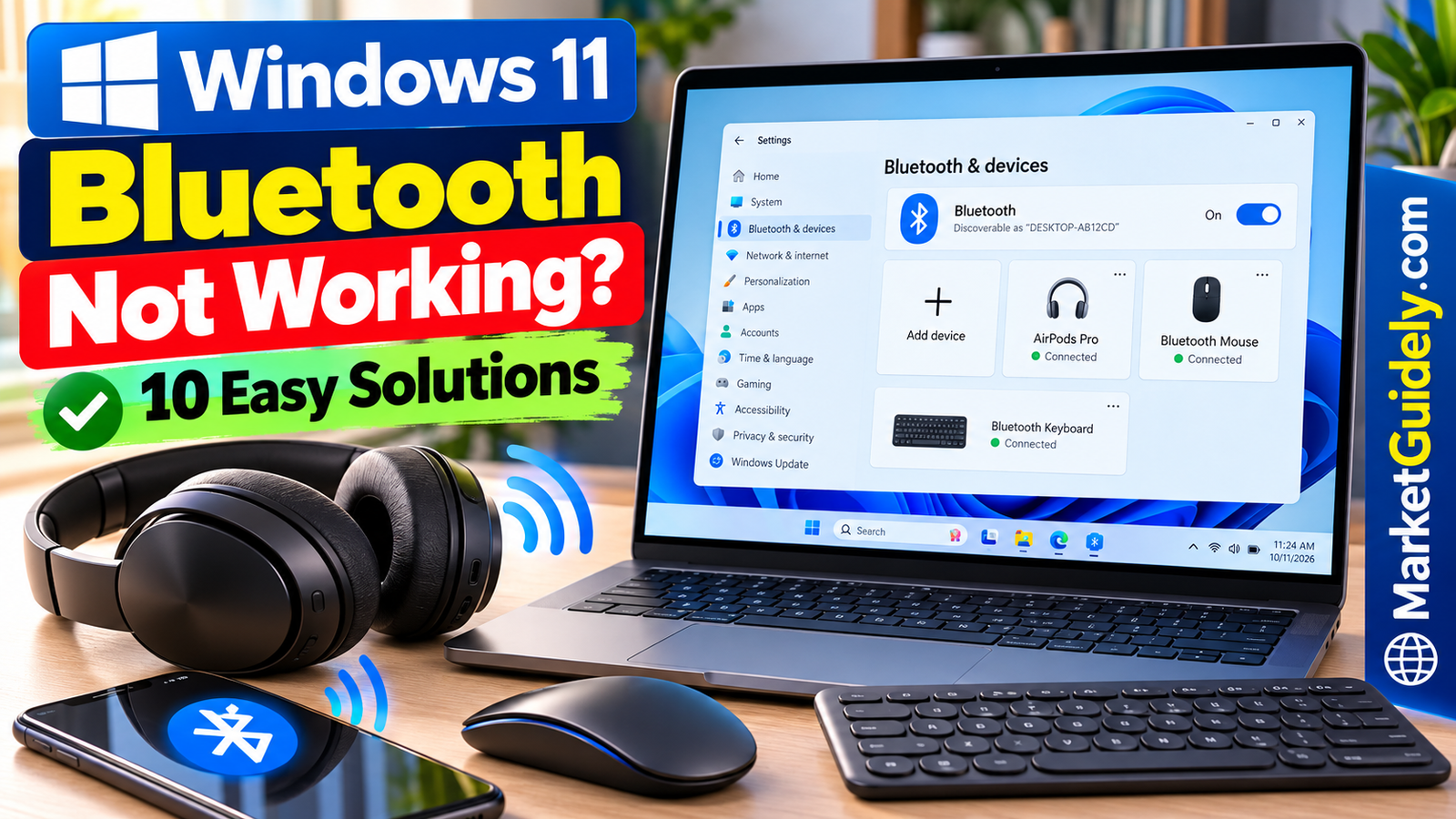
Windows 11 Bluetooth not working can prevent you from connecting wireless headphones, keyboards, mice, and other accessories to your PC. The problem may be caused by incorrect settings, pairing issues, outdated drivers, or a missing Bluetooth adapter. In this guide, you’ll learn how to identify the cause and try 10 practical solutions step by step.
The good news is that many Bluetooth problems can be resolved without buying a new accessory or reinstalling Windows. The important thing is to identify the type of problem before changing system settings.
This guide walks you through practical troubleshooting steps, starting with simple checks and moving to driver-related fixes. You will also learn what to do when Bluetooth connects successfully but your headphones produce no sound.
Bluetooth Problem Finder
Select the issue you’re experiencing to find the most relevant
troubleshooting steps for Windows 11.
Quick answer
If Bluetooth is not working in Windows 11, first check that Bluetooth is enabled, your accessory is charged and in pairing mode, and Airplane mode is off. If the problem continues, run the Bluetooth troubleshooter, remove and re-pair the device, and check for the correct Bluetooth driver.
Table of Contents
- Identify your Bluetooth problem
- 1. Check the basic Bluetooth settings
- 2. Put your accessory into pairing mode
- 3. Remove and reconnect the device
- 4. Run the Bluetooth troubleshooter
- 5. Check Airplane mode and restart
- 6. Update the Bluetooth driver
- 7. Check Windows Update
- 8. Fix a missing Bluetooth option
- 9. Fix Bluetooth connected but no sound
- 10. Fix frequent disconnections
- Which solution should you try first?
- Frequently asked questions
Identify Your Bluetooth Problem First
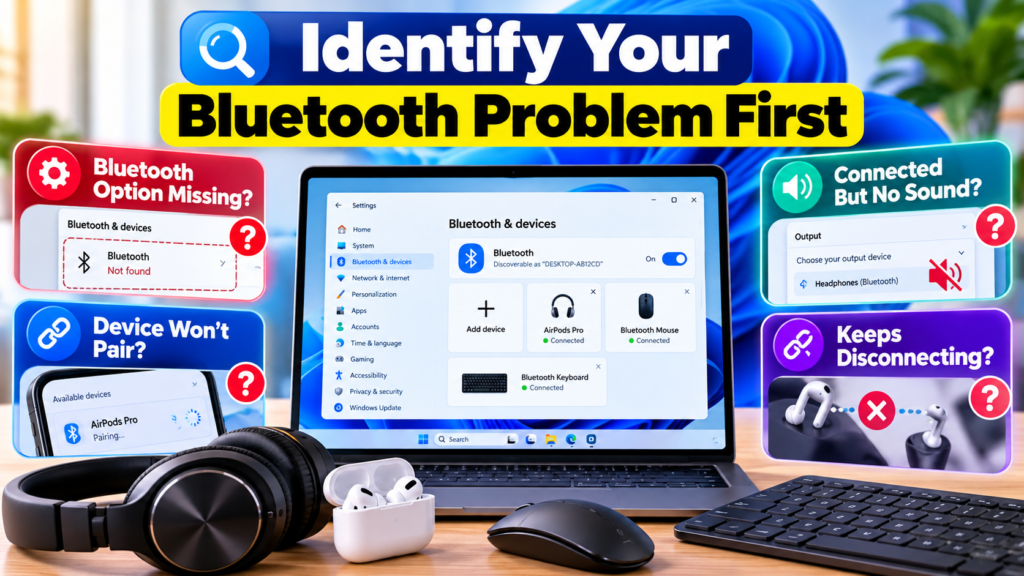
Before trying every fix, check what is actually happening. Different symptoms can point to different causes, so choosing the right solution may save you time.
| What you see | What to try first |
|---|---|
| Bluetooth toggle is missing | Check Device Manager and the Bluetooth driver |
| Bluetooth is on, but no device appears | Check pairing mode, range and device discovery |
| Device appears but will not connect | Charge it and remove and re-pair it |
| Headphones connect but have no sound | Check the Windows audio output device |
| Connection repeatedly drops | Check power, distance, drivers and interference |
My practical advice: Start with the symptom you can actually see. If Bluetooth is missing completely, repeatedly clicking the Bluetooth toggle will not solve a driver or hardware detection problem. If your headphones are connected but silent, focus on sound output settings instead.
1. Check the Basic Bluetooth Settings
Windows can sometimes have Bluetooth switched off, particularly after a settings change, restart or troubleshooting attempt. Check the toggle before making more complicated changes.
- Press Windows + A to open Quick Settings.
- Look for the Bluetooth button.
- If Bluetooth is off, select it to turn it on.
- If you cannot find the button, open Start → Settings → Bluetooth & devices.
- Check whether the Bluetooth toggle is available and enabled.
If the toggle is available but the device still will not connect, turn Bluetooth off, wait approximately 10 seconds, and turn it back on.
Helpful tip
If you use a desktop PC, verify that it actually supports Bluetooth. Some desktop computers need a compatible USB Bluetooth adapter or a supported internal wireless adapter.
2. Put Your Accessory Into Pairing Mode
A common mistake is assuming that switching on headphones or a keyboard automatically makes them discoverable. Many accessories must be placed into pairing mode before Windows can find them.
- Check the accessory manufacturer’s instructions for pairing mode.
- Make sure the accessory has enough battery power.
- Disconnect it from another phone, tablet or computer if it is already connected there.
- Keep the accessory close to your PC while pairing.
- Open Settings → Bluetooth & devices → Add device → Bluetooth.
- Select your accessory when it appears.
Some headphones enter pairing mode automatically when first switched on, while others require holding a button. The exact procedure varies by model.
If Windows still cannot find the device, check whether the accessory supports Bluetooth and whether its discovery or pairing mode is active. Do not assume that every wireless accessory uses Bluetooth; some use a dedicated USB receiver instead.
3. Remove and Reconnect the Bluetooth Device
If a device appears in Windows but refuses to connect, its saved pairing information may no longer be working correctly. Removing the device and pairing it again can help.
- Open Settings → Bluetooth & devices → Devices.
- Find the accessory that is causing the problem.
- Select its three-dot menu, where available.
- Choose Remove device and confirm.
- Put the accessory into pairing mode again.
- Select Add device → Bluetooth and pair it again.
Keep in mind that removing a device deletes its saved pairing from Windows. You may need to pair it again with this PC.
When this fix is most useful: Try it when a device previously worked but now repeatedly fails to connect, or when Windows displays an old or incorrect device entry.
4. Run the Windows Bluetooth Troubleshooter
Windows 11 includes automated troubleshooting through Microsoft’s Get Help app. It can run diagnostic checks and attempt to resolve certain Bluetooth problems.
- Open the Start menu.
- Search for Get Help and open the app.
- Search within the app for Bluetooth troubleshooting.
- Follow the instructions provided for your problem.
- Apply any recommended fix and test the connection again.
The exact diagnostic flow may vary depending on your Windows version. If the automated troubleshooter cannot resolve the issue, continue with the relevant steps in this guide.
You can also open Settings → System → Troubleshoot → Other troubleshooters and check whether a Bluetooth troubleshooter is available on your installation.
Official reference: Microsoft’s Bluetooth troubleshooting guide.
5. Check Airplane Mode and Restart Your PC
Airplane mode can disable wireless connectivity, depending on the device and its settings. A restart can also clear a temporary system problem.
- Press Windows + A.
- Check that Airplane mode is turned off.
- Save your open work.
- Open Start → Power → Restart.
- After Windows starts again, check Bluetooth and test the accessory.
If you have a laptop with a physical wireless switch or a manufacturer-specific keyboard shortcut, check the laptop’s instructions as well.
A restart is worth trying early because it is simple and does not require removing drivers or changing advanced settings.
6. Update the Bluetooth Driver
A Bluetooth driver helps Windows communicate with the computer’s Bluetooth hardware. An outdated, incompatible or damaged driver can cause pairing failures, missing controls and unstable connections.
How to check for a driver update
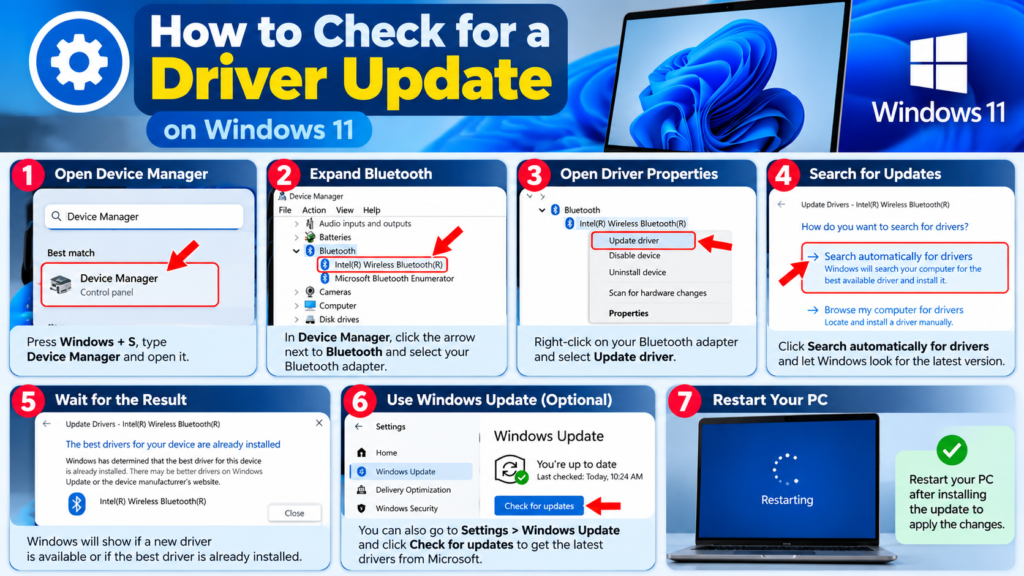
- Right-click Start and open Device Manager.
- Expand the Bluetooth section if it appears.
- Right-click your Bluetooth adapter. Its name may include the manufacturer or the word “Radio.”
- Select Update driver.
- Choose the option to search automatically for drivers.
- Follow any instructions and restart the computer if requested.
Windows may report that the best driver is already installed even when the computer manufacturer offers a newer version. If the problem remains, visit the official support website for your PC or adapter manufacturer and search using your exact model number.
Download drivers only from a trusted manufacturer or an appropriate official source. Avoid random driver-download websites and third-party “driver updater” utilities that you cannot verify.
Before installing a driver
Confirm your PC model and Windows version. Installing a driver intended for different hardware can create additional problems. If Bluetooth stopped working immediately after a driver update, check whether the driver properties offer a Roll Back Driver option.
Official reference: How to update Bluetooth drivers in Windows.
7. Check Windows Update
Windows Update can provide system fixes and compatible drivers for supported hardware. If Bluetooth problems started after a system update or upgrade, checking for available updates is a sensible next step.
- Open Settings → Windows Update.
- Select Check for updates.
- Review any available updates and follow the installation instructions.
- Check Advanced options → Optional updates if you need to review optional driver updates.
- Restart if requested and test Bluetooth again.
Do not install every optional driver simply because it appears in the list. Choose updates that are relevant to your hardware and problem. If Windows Update does not provide the appropriate driver, check the computer manufacturer’s support page.
8. Fix a Missing Bluetooth Option
If the Bluetooth toggle has disappeared from Quick Settings and Settings, the issue may be more than a disabled switch. Windows might not be detecting the Bluetooth adapter properly.
Check Device Manager
- Right-click Start and select Device Manager.
- Look for a Bluetooth category.
- If the adapter appears, open its properties and check whether Windows reports an error.
- Check the Other devices section for an unidentified device that may need a manufacturer driver.
- Check Windows Update and the manufacturer’s official driver support page.
If the Bluetooth adapter appears and you have already tried updating its driver, Microsoft’s troubleshooting guidance includes uninstalling the adapter and restarting Windows so that the driver can be reinstalled. Use this step only after simpler fixes and after confirming that you can obtain the correct driver if needed.
What if Bluetooth does not appear anywhere?
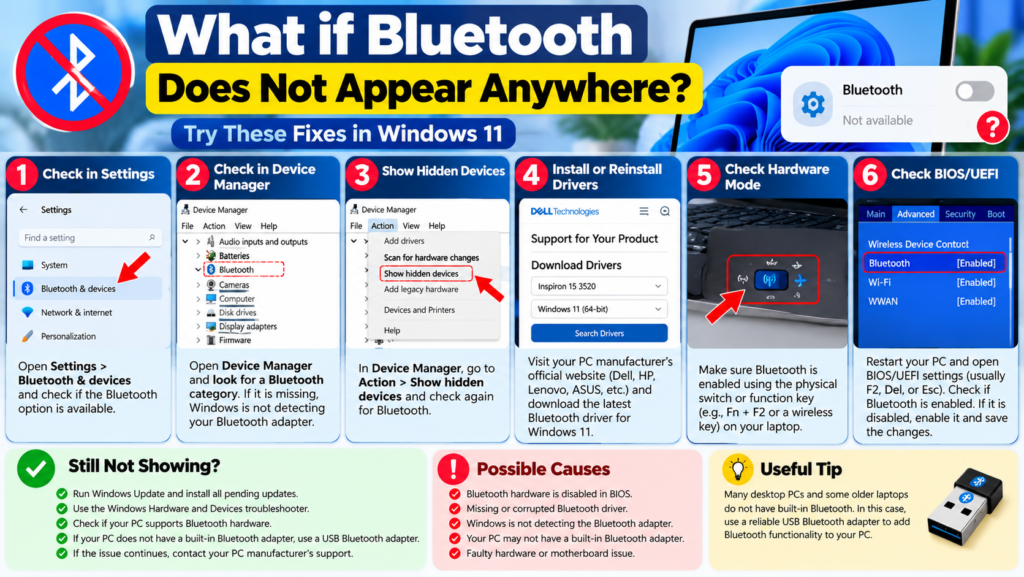
If Bluetooth is absent from Settings and Device Manager, Windows may be unable to detect the hardware, or the PC may not have built-in Bluetooth. Confirm your PC specifications first. For a built-in adapter, check manufacturer support for the correct driver and any applicable firmware guidance.
If the adapter remains undetected after appropriate troubleshooting, contact the PC manufacturer or a qualified technician rather than repeatedly installing unrelated drivers.
Official reference: Microsoft’s guide to missing Bluetooth controls.
9. Fix Bluetooth Connected but No Sound
Sometimes Windows reports that headphones or speakers are connected, but audio continues to play through the laptop speakers or no sound comes out at all. In this situation, focus on audio output settings before changing Bluetooth drivers.
- Connect your Bluetooth headphones or speaker.
- Open Settings → System → Sound.
- Under Output, select the correct Bluetooth audio device.
- Check the volume level and ensure that the audio is not muted.
- Play audio again and check whether the problem is resolved.
If the device still produces no sound, disconnect and reconnect it, then restart the app playing the audio. You can also remove and re-pair the device using the steps above.
For more advanced audio problems, check the device’s available audio settings and the manufacturer’s instructions. Avoid changing multiple sound settings at once, because that makes it harder to identify which change helped.
Official reference: Fix Bluetooth connected but no sound in Windows.
10. Fix Bluetooth That Keeps Disconnecting
Frequent disconnections can be caused by low battery power, distance, wireless interference, driver issues or problems with the accessory itself. Start with the easiest checks.
- Charge the accessory: A low battery can affect some devices’ ability to maintain a stable connection.
- Reduce distance: Keep the accessory close to the computer while testing.
- Check for interference: Move away from other sources of wireless interference where practical, and check whether nearby USB 3.0 devices affect the connection.
- Test another device: If possible, connect a different Bluetooth accessory to the same PC.
- Check drivers: Install the correct driver from Windows Update or the PC manufacturer’s official support page.
- Check the accessory: Test it with another compatible device to see whether the problem follows the accessory.
A useful diagnostic tip: If several Bluetooth accessories disconnect from the same computer, investigate the PC, its drivers and its wireless environment. If only one accessory has the problem across multiple devices, check that accessory’s battery, firmware and manufacturer support guidance.
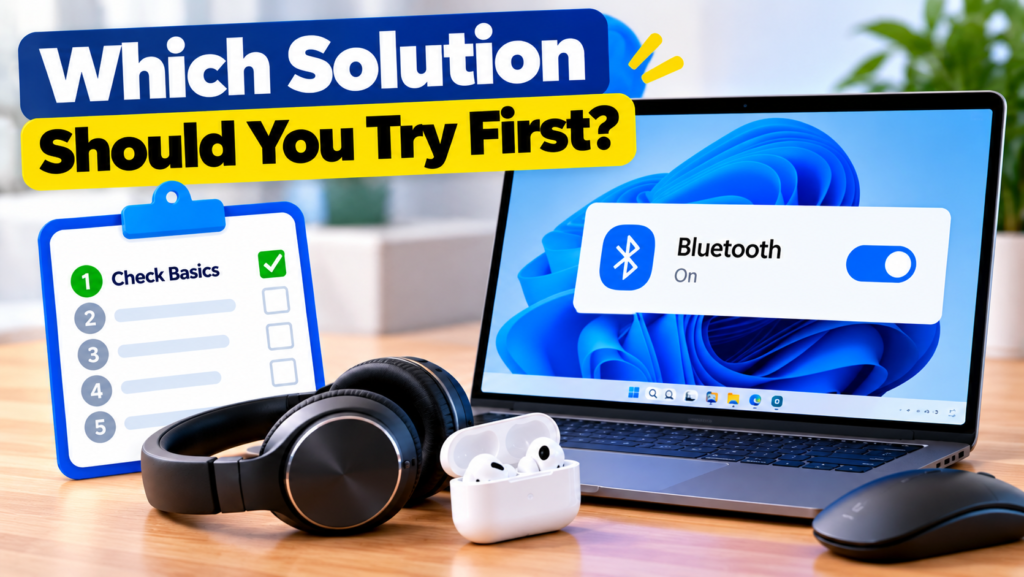
Which Solution Should You Try First?
| Your situation | Recommended starting point |
|---|---|
| Bluetooth is switched off | Solution 1 |
| Windows cannot find your headphones | Solution 2 |
| A previously paired device will not connect | Solution 3 |
| The connection problem has no obvious cause | Solution 4 |
| Bluetooth disappeared after an update | Solutions 6, 7 and 8 |
| Bluetooth connects but there is no sound | Solution 9 |
| Devices repeatedly disconnect | Solution 10 |
My recommendation is to work through the fixes in a logical order rather than changing everything at once. Test Bluetooth after each major change. That way, you can identify the fix and avoid unnecessary system modifications.
Frequently Asked Questions
Why is Bluetooth not showing in Windows 11?
The computer may not support Bluetooth, or Windows may be unable to detect the adapter because of a driver, hardware or firmware problem. Check your PC specifications and Device Manager before installing drivers.
How do I reset Bluetooth in Windows 11?
There is no single reset button that fixes every Bluetooth problem. You can turn Bluetooth off, wait around 10 seconds, and turn it on again. If a device still will not connect, remove it from Bluetooth settings and pair it again.
Why can Windows 11 find my headphones but not connect to them?
The headphones may not be in pairing mode, may be connected to another device, or may have insufficient battery power. Charge them, check the manufacturer’s pairing instructions, and remove and re-pair them if necessary.
Can a Windows update cause Bluetooth problems?
A system or driver update can sometimes introduce compatibility problems. Check for appropriate updates, and if the issue began immediately after a driver update, review whether rolling back the Bluetooth driver is available.
Should I uninstall the Bluetooth driver?
Not as a first step. Try basic settings, pairing, the troubleshooter and driver updates first. Uninstalling the adapter may be appropriate in some cases, but you should know your PC model and how to obtain the correct driver before proceeding.
Will these fixes work on every Windows 11 computer?
Not necessarily. Menu options and available troubleshooting tools can differ by Windows version and hardware. A missing hardware adapter, unsupported accessory or physical fault may require manufacturer assistance.
My Final Thoughts
Bluetooth problems in Windows 11 can be frustrating, especially when a device worked normally the day before. However, you do not need to jump straight to reinstalling Windows or replacing your accessories.
Start by checking the Bluetooth toggle, accessory battery and pairing mode. If those checks do not help, try re-pairing the device, running the troubleshooter and updating the appropriate driver. If Bluetooth is missing entirely, investigate hardware detection instead of repeatedly changing connection settings.
The best fix depends on the symptom. A little systematic troubleshooting can help you identify the cause without making unnecessary changes to your computer.
More practical technology guidesExplore more Windows, smartphone and computer troubleshooting guides on MarketGuidely.com.
If a particular Bluetooth error remains unresolved, note the exact message, your PC model and whether Bluetooth appears in Device Manager before seeking further help.
Author

marketguidely@gmail.com
Related Posts

AI Smart Home Devices in 2026: What to Buy & Avoid
- 0
- 2,455 words
Smart home technology is moving beyond simple voice commands and scheduled routines. Newer devices increasingly use artificial intelligence to interpret requests, connect...
Why Is My Windows 11 Laptop So Slow? 10 Fixes
- 0
- 2,131 words
A slow laptop can turn even simple tasks into a frustrating experience. Windows may take too long to start, apps might freeze...
How to Fix Wi-Fi Keeps Disconnecting in Windows 11
- 1
- 2,246 words
When Windows 11 WiFi keeps disconnecting, even a simple task such as joining a video meeting, downloading a file, or watching a...
The Best Wireless Earbuds Under ₹2000
- 0
- 1,839 word
Wireless Earbuds Under ₹2000 Spending ₹2000 on wireless earbuds in India used to mean accepting tinny sound, flimsy plastic, and a battery...
Read out all
Things to Check Before Buying a Laptop: 10 Smart Tips for a Better Buy in 2026
- 0
- 3,077 words
Buying a used laptop can feel like a shortcut until you realize the “deal” comes with a dying battery, a warped hinge,...
Read out all
Things to Check Before Buying a Gaming PC: 10 Smart Tips for a Better Buy in 2026
- 0
- 3,019 words
Buying a gaming PC can feel simple until you start comparing specs and realize half the numbers only matter in the right...
Read out all
1 comment