
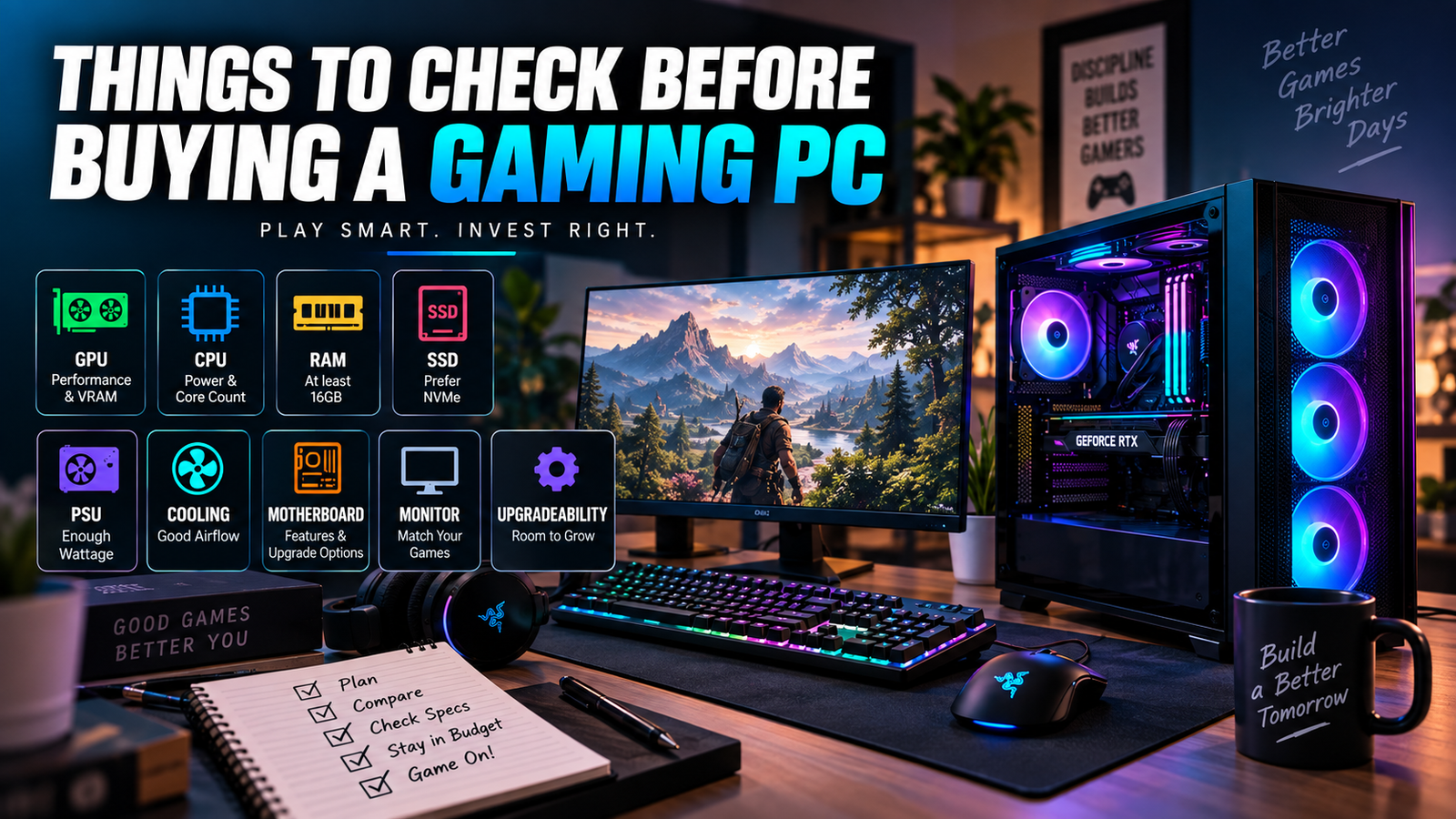
Buying a gaming PC can feel simple until you start comparing specs and realize half the numbers only matter in the right context. The smartest way to approach Things to Check Before Buying a Gaming PC is to start with the games you play, then match the hardware to your monitor, your budget, and the kind of smoothness you actually notice.
Here’s the thing: a great gaming PC is not the one with the biggest sticker price. It’s the one that makes your favorite games look and feel right, without wasting money on parts that do nothing for you.
Table of Contents
Start with what you actually want to play
A gaming PC for Valorant, Minecraft, and Hades has a very different job than one built for Cyberpunk 2077, Starfield, or modded Skyrim. That sounds obvious, but people skip this step all the time and end up paying for power they never use, or worse, buying a machine that stutters in the exact games they care about.
If your library is mostly indie games and esports titles, you can get away with a lighter build because those games lean more on quick responsiveness than brute force. If you want high-end visuals, ray tracing, and big open worlds, the GPU becomes the star of the show. “Good enough” only means something after you know what good looks like for your games.
Match the PC to your game library
Indie games tend to be gentle on hardware. Esports games are usually more demanding on frame rate than graphics quality, which means they reward a balanced system that stays fast and responsive. AAA games are the hungry ones, especially when you turn up textures, shadows, and effects.
That is why your Steam library matters more than a random benchmark chart. If you mostly launch Fortnite, Rocket League, and Counter-Strike 2, a midrange PC can feel excellent. If your weekends are spent in AAA releases with heavy visual settings, you need to think much harder about GPU power and storage space.
Pick a target resolution and frame rate
Resolution is just the number of pixels on your screen. 1080p means 1,920 by 1,080 pixels, 1440p means 2,560 by 1,440, and 4K means 3,840 by 2,160. Higher resolution looks sharper, but it also asks more from the graphics card.
Frame rate is how many images the PC pushes each second. 60 Hz means the display refreshes 60 times per second, 120 Hz means 120, and 144 Hz means 144. If your monitor is 60 Hz, buying a monster PC to chase 200 frames per second makes less sense than buying a better display first.
The trick is simple: match the PC to the monitor you already use, or plan to buy. A solid 1080p, 60 fps setup is a totally different purchase from a 1440p, 144 Hz setup, and the second one needs more muscle across the board.
Set a budget that leaves room for the rest
The tower is only part of the bill. A gaming PC also needs a monitor, keyboard, mouse, headset, and possibly a Windows license, so the total can creep up like a surprise checkout line if you only budget for the box itself.
A good rule is to set the total budget first, then decide how much belongs to the PC itself. That keeps you from overspending on the tower and ending up with a bargain-bin monitor that bottlenecks the whole experience. A strong PC paired with a weak screen is like buying a fast car and driving it in first gear.
Check the GPU first
The graphics card does most of the visual heavy lifting, so it should be the first serious spec you inspect. If the GPU is weak for your target games and resolution, nothing else can fully save the build.
This is why the GPU usually deserves the biggest slice of your budget. Not always, but usually. If your goal is better graphics and higher frame rates, this is where the money should go.
Decide how much graphics power you need
For esports at 1080p, you do not need a top-tier card. A sensible midrange GPU can deliver smooth frame rates without turning your budget upside down. For modern AAA games at 1440p, you should expect to spend more, because higher settings and sharper resolution eat GPU performance fast.
If you want high settings, ray tracing, or a high-refresh monitor, buy up on the GPU before you buy up on anything else. A fancy case does not make a game run better. A stronger GPU does.
Make sure the VRAM is enough
VRAM is the graphics card’s short-term memory for textures, shadows, and effects. If the card runs out, it starts shuffling data around, and that is when stutter and hitching show up.
For a lot of current games, 8 GB is starting to feel tight, especially at 1440p or with high texture settings. Twelve gigabytes or more gives you more breathing room, and that matters if you keep games installed for years instead of swapping them out every month. It is not about chasing a number for its own sake, it is about avoiding ugly slowdowns in real games.
Don’t Buy a great GPU with a weak power plan
A strong graphics card needs support. That means a power supply with enough wattage, a case with real airflow, and enough physical room for the card itself. People get excited about raw GPU power and then discover the rest of the build was never meant to handle it.
The catch is that high-end cards can also run hot and loud if the system around them is cheap or cramped. A great GPU in a bad chassis is like putting a race engine in a box truck. It works, technically, but it is messy and disappointing.
Don’t Skimp on the CPU
The CPU handles game logic, background tasks, and a lot of the snappiness you feel when opening apps or alt-tabbing. If the GPU is the muscle, the CPU is the coordinator keeping everything moving.
You do not need the biggest CPU on the shelf. You do need one that makes sense beside your graphics card, your games, and whatever else you plan to run.
Choose a CPU that matches your GPU
A fast GPU paired with a weak CPU creates a bottleneck, which just means one part is waiting around for another part to catch up. That is like buying race tires for a grocery cart. The tires are not the problem, the cart is.
For most gaming builds, balance beats bragging rights. If you buy a high-end GPU, pair it with a CPU that can keep up. If you are building around a midrange GPU, a sensible midrange CPU is often the sweet spot.
Look at core count and single-core speed
Cores are the CPU’s worker units. More cores help when you stream, record gameplay, keep Discord open, or run a bunch of tasks in the background. Single-core speed matters because many games still lean heavily on one or a few fast cores for the moment-to-moment action.
That means a modern six-core CPU can be perfectly fine for gaming, while an older eight-core chip might feel slower if its single-core performance is weak. If the specs get confusing, remember the practical rule: games want fast cores, and multitasking likes more cores.
Check the CPU socket and upgrade path
The socket is the physical connection between the CPU and motherboard. If the socket is already at the end of its life, your upgrade options later may be limited.
This matters more than people think. Buying into a dead-end platform can make future upgrades awkward or expensive, especially if you want to swap in a faster CPU a year or two later. A little checking now can save you from replacing more of the system than you planned.
Make memory and storage work for you
RAM and storage do not sound exciting, but they shape how smooth the PC feels every day. They affect loading times, multitasking, and how much annoyance you deal with after the initial thrill of buying the machine.
If you are already familiar with the basics, this is the section to skim for the numbers that actually matter.
Aim for the right amount of RAM
For most gaming PCs, 16 GB is the practical floor. It gets you through modern games without forcing every other app to fight for space. If you keep lots of browser tabs open, stream, edit clips, or play heavier games, 32 GB is a nicer place to be.
The mistake is buying too little and hoping it will not matter. RAM shortages tend to show up as sluggishness, stutters, or background apps getting kicked in the teeth. Extra memory does not make everything faster, but too little memory makes everything feel worse.
Use fast, modern storage
An SSD is a solid-state drive, and it loads games much faster than an old spinning hard drive. An NVMe SSD is the newer, faster kind that plugs directly into the motherboard and cuts wait times down even more.
For a gaming PC in 2026, NVMe should be the default, not a luxury. One terabyte is a sensible starting point, and two terabytes is nicer if your library grows fast. Big games are huge now, and running out of space is an annoying problem you do not want to solve with constant deleting and reinstalling.
Check whether you can add more later
Look at how many RAM slots the motherboard has, how many storage slots are free, and whether the case has room for another drive. Expansion space matters because your game library will grow, even if you swear it will not.
A machine that can grow with you feels better over time. One that is already packed tight can become annoying fast, especially once new releases start taking up 100 GB or more per install.
| Where in your article | Anchor text | Link |
|---|---|---|
| GPU section | graphics card | NVIDIA GeForce graphics cards |
| CPU section | CPU | AMD Ryzen desktop processors |
| CPU/spec section | CPU specifications | AMD processor specifications |
| Ports section | DisplayPort | Official DisplayPort FAQ |
| Ports section | DisplayPort | DisplayPort official website |
Look at cooling, power, and the case
These are the parts most people ignore until the PC gets hot, loud, or unstable. Then suddenly airflow sounds interesting.
A gaming PC is not just a pile of specs. It is a system, and the parts that keep it cool and powered properly decide how well the flashy stuff performs.
Make sure the case breaths well
A case with good airflow lets cool air in and hot air out without fighting itself. Mesh fronts, sensible fan placement, and enough space around the major parts all help keep temperatures under control.
A sealed-up case can trap heat like a car parked in the sun at a strip mall in July. That extra heat can make fans louder and components slower, and nobody buys a gaming PC hoping for the sound of a hair dryer.
Check the cooler on the CPU and GPU
Some CPUs come with stock coolers, and some do not. A better aftermarket cooler can keep temperatures lower and noise down, which you will notice the first time a game loads into a busy scene and the PC does not start sounding angry.
GPU cooling matters too, though most people only notice it when it is bad. If the machine stays quiet under load and does not throttle performance, that is usually a good sign the cooling setup is doing its job.
Verify the power supply is solid
The power supply, or PSU, feeds every part of the system. You want enough wattage, but you also want a quality unit with decent efficiency and a trustworthy design.
This is not the part to save a few bucks on. A bargain-bin PSU can become the weak link in a very expensive machine. A solid power supply does its job quietly, which is exactly what good hardware should do.
Don’t Forget the ports, wi-fi, and everyday extras
Small details are easy to ignore until you start plugging things in. Then every missing port and awkward connector becomes a tiny daily annoyance.
These extras do not sound glamorous, but they make a gaming PC easier to live with from day one.
Check the USB and video ports
You will want enough USB ports for a headset, controller, mouse, keyboard, and maybe an external drive. USB-C is handy for newer devices, while HDMI and DisplayPort matter for monitors.
DisplayPort is often the better choice for high-refresh gaming monitors, while HDMI is common and perfectly useful. The point is not to memorize every connector shape, just to make sure the PC has the ones your desk setup actually needs.
Look for reliable networking
Ethernet is still the most reliable option if you can run a cable. Wi-Fi is the backup, and sometimes the only practical choice, especially if the PC sits far from the router. Bluetooth is useful for wireless headsets, controllers, and other accessories.
If you need wireless, Wi-Fi 6 or newer is a nice feature to look for. It will not fix a bad internet plan, but it can make the connection feel steadier and less fussy.
Pay attention to audio and convenience features
Front-panel audio jacks save you from crawling behind the tower every time you plug in headphones. A built-in card reader can be handy if you move files from cameras or portable devices. Even the placement of the power button matters more than people expect.
These are the kinds of details that make the machine feel pleasant instead of just powerful. Once you notice them, you stop wanting to go back.
Compare pre-built, custom, and upgrade options
How you buy the PC matters almost as much as what is inside it. A great spec sheet can still turn into a mediocre purchase if the buying route is wrong for your comfort level and budget.
There is no single right answer here, but there are clear trade-offs.
Know what you get with a pre-built PC
A pre-built gaming PC is convenient. It arrives assembled, tested, and ready to use, which is great if you do not want to spend an evening sorting screws on your desk.
The catch is that some pre-builts cut corners where casual shoppers are least likely to notice, like the power supply, motherboard, or cooling. That is why the parts list matters more than the big headline spec.
Understand the trade-offs of a custom build
Custom builds give you control. You can pick better parts for the money, avoid weak links, and tailor the machine to your exact games and budget.
The downside is the time and learning curve. Assembly is not rocket science, but it does ask for patience. If you enjoy choosing parts and want the best value for each dollar, a custom build is often the better deal.
Check upgradeability before you buy
Look for open RAM slots, extra storage space, a PSU with some headroom, and a case that can fit larger parts later. Upgradeability matters because your needs change faster than hardware specs do.
A PC that is easy to improve can stay useful for years. One that is boxed in by its own design can force a full replacement sooner than you want.
Make the final buy with confidence
At this point, the goal is not more research. It is a clean final pass so you do not miss something obvious in the excitement of clicking buy.
A few minutes of checking now can save a lot of regret later.
Use a quick before-you-buy checklist
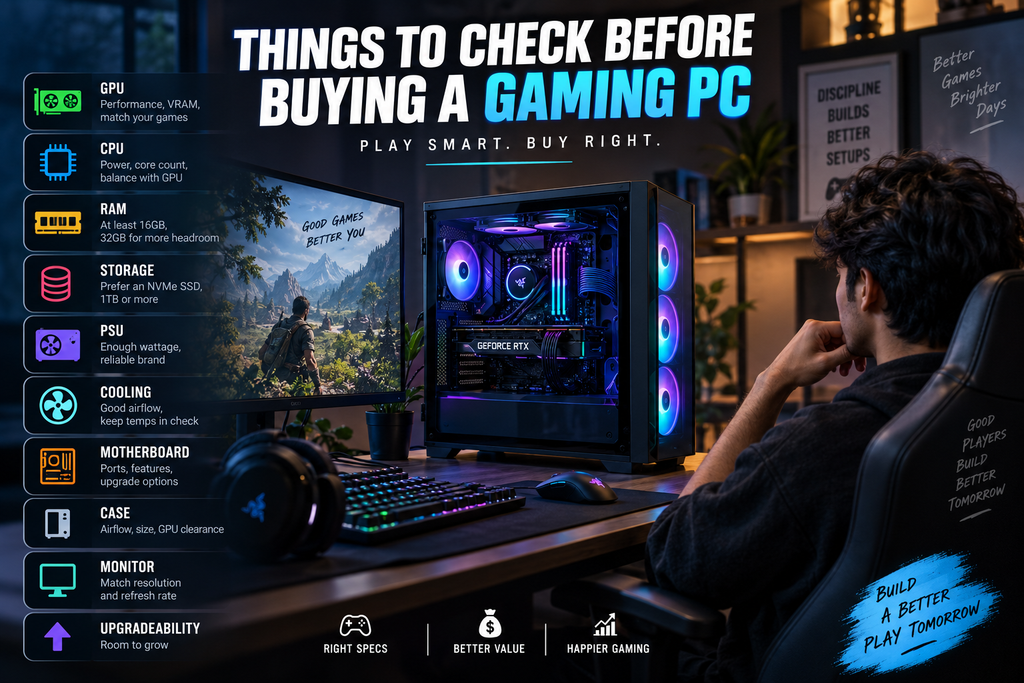
Before you commit, confirm the GPU matches your game and resolution goals. Check the CPU for balance, make sure RAM is at least 16 GB, and verify that storage is NVMe and large enough for your library. Then look at cooling, PSU quality, port selection, and upgrade room.
That short pass catches most bad purchases. If one spec looks strangely weak compared with the rest, trust your gut and dig deeper.
Watch for sneaky weak spots
The classic trap is an overpowered GPU paired with a weak CPU. Another is too little storage, which sounds harmless until three big games and a couple of updates fill the drive. A cheap power supply hidden inside a flashy case is another one to avoid.
These are the parts that cause buyer’s remorse because they do not sound exciting at checkout. They matter a lot once the PC is on your desk.
Take one last look at your setup
Make sure the PC fits your monitor, desk, and the games you actually play. That last glance often tells you more than another hour of spec hunting.
If one thing should stick from all of this, it is simple: buy for your games first, then check the parts that keep the whole system balanced. That is the difference between a gaming PC that looks good on paper and one that feels right every time you hit the power button.
I hope this article is helpful for you, please share it on social media and MarketGuidely provides quality and informative and problem solving article/solution, Thank You
Author

marketguidely@gmail.com
Related Posts
Best AI Home Security Cameras in 2026: What to Know
- 0
- 2,459 words
MarketGuidely Technology Buying Guide Best AI Home Security Cameras in 2026: Features, Costs & Privacy Home security cameras have become more intelligent,...

AI Smart Home Devices in 2026: What to Buy & Avoid
- 0
- 2,455 words
Smart home technology is moving beyond simple voice commands and scheduled routines. Newer devices increasingly use artificial intelligence to interpret requests, connect...

How to Price Cleaning Services in 2026: Rates & Examples
- 0
- 2,816 words
Pricing a cleaning service sounds straightforward until you start adding up the hours, supplies, travel, insurance and time spent managing customers. A...
Why Is My Windows 11 Laptop So Slow? 10 Fixes
- 0
- 2,131 words
A slow laptop can turn even simple tasks into a frustrating experience. Windows may take too long to start, apps might freeze...
How to Fix Wi-Fi Keeps Disconnecting in Windows 11
- 1
- 2,246 words
When Windows 11 WiFi keeps disconnecting, even a simple task such as joining a video meeting, downloading a file, or watching a...
How to Fix Windows 11 Bluetooth Not Working: 10 Fixes
- 1
- 2,459 words
Windows 11 Bluetooth not working can prevent you from connecting wireless headphones, keyboards, mice, and other accessories to your PC. The problem...